
How to Buy a Domain in the Riki Domains Web Panel: Step by Step
Buying a domain in the Riki Domains web panel on a real example: top-up, search, the cart with the WHOIS option, confirmation, domain card and first DNS record.
This guide was captured in the Riki Domains web panel on a real purchase: in a fresh account registered with a login and password we topped up the balance by $5, bought a domain for $3.35 and added the first DNS record. All screenshots were taken along the way; the numbers and statuses in them are real. How to get into the panel and what is inside is covered in a separate guide; the same path in the Telegram bot is covered here.
Step 1. Top up the balance
Purchases in the panel are charged to the balance, so Finances comes first. The amount goes into the field next to the Top up button, $10 by default; we entered 5. After the click the panel says "Invoice created. Proceed to payment" and gives a link to the payment page.
On the payment page you pick a coin: USDT (TRC-20 and BEP-20), USDC, BTC, ETH, TRX, BNB or POL. After the choice the amount in the coin, the address and a QR code appear, and the rate is locked for the payment window. Send exactly the amount shown: crediting is automatic, and after the network confirmation two lines appear in the operations history, the deposit and the "Balance top-up (gateway)" transaction. If a different amount arrived, for example the exchange deducted its fee, support credits the payment manually; details in the support guide.
Step 2. Find a domain
The Buy domain button in the left menu or Ctrl K. First a category is chosen: Standard, Platinum or Titan, then a keyword. The panel checks availability across the category's zones and shows a list with the yearly price and an Add button on every row; the results stay on a timer, and the search can be repeated after a few seconds.
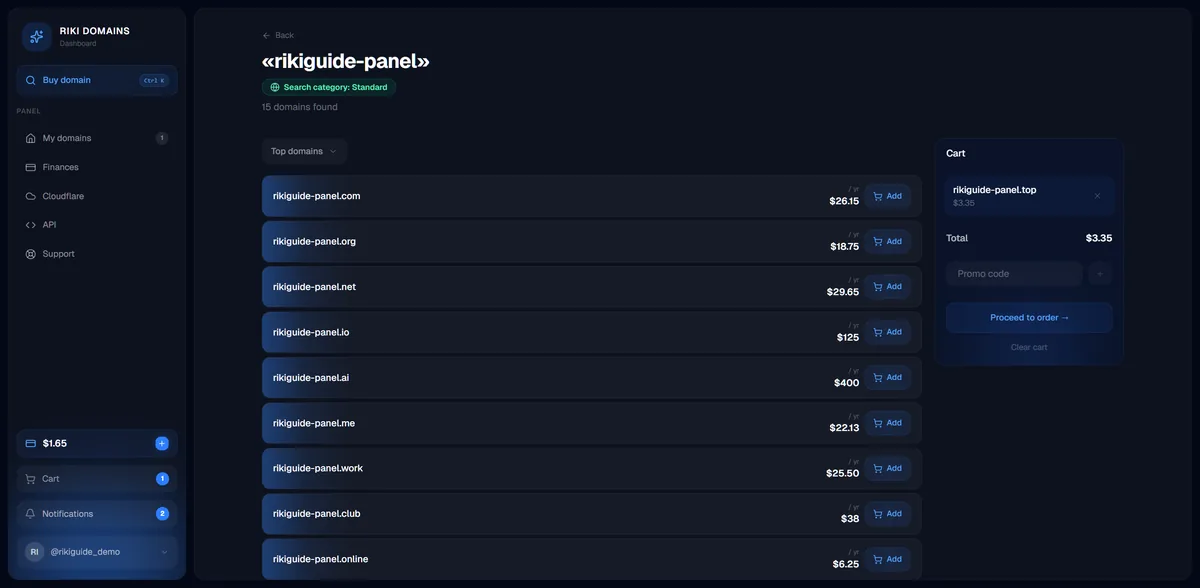
In our example the keyword rikiguide-panel returned 15 options: from .top at $3.35 and .xyz at $4.98 to .ai at $400. The full list of zones with prices is in the table.
Step 3. The cart and the privacy option
After Add, a cart block appears on the right and a Cart item with a counter in the menu. The checkout page shows every domain as a separate row: zone, plan, yearly price, a Remove button and a "WHOIS Privacy for $10" switch. Privacy for standard zones is enabled exactly here, before payment; we did not enable it, so the domain card later shows the WHOIS status as Public. On the right are the order total, a promo code field and the Pay button. The screenshot below is from the Russian interface; the panel also runs in English.
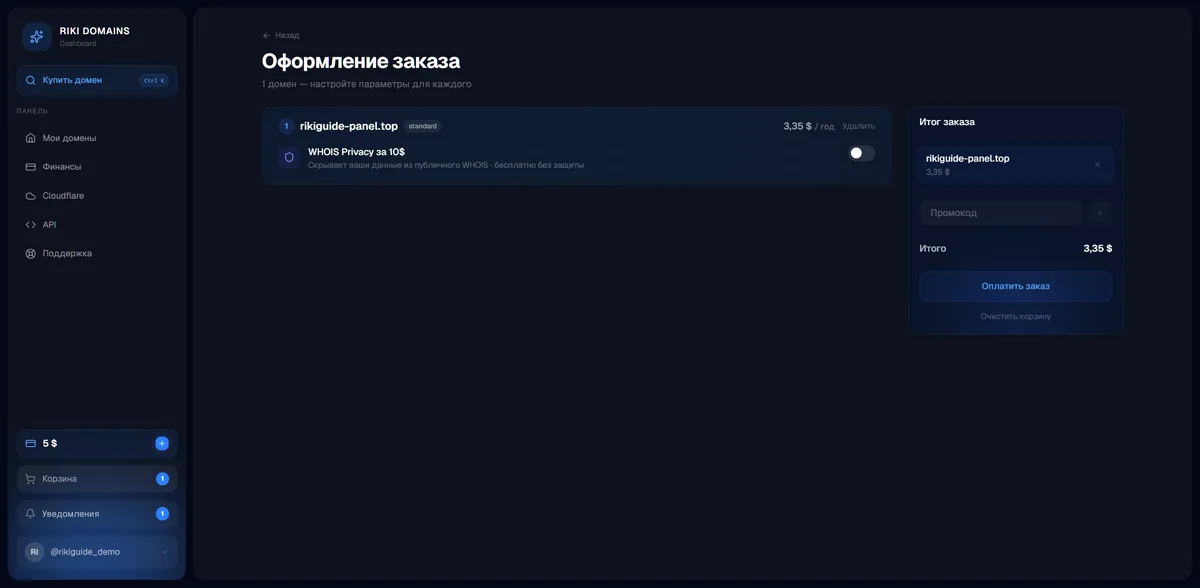
Step 4. Confirmation and registration
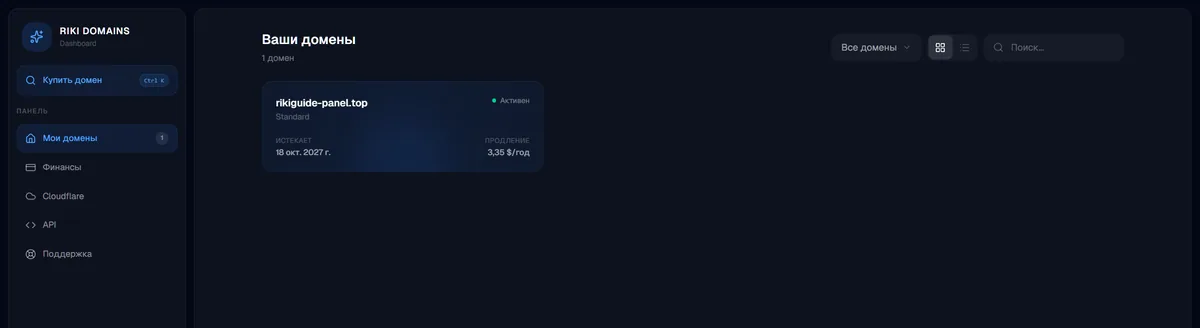
Pay opens a "Confirm the purchase?" dialog with a warning that after confirmation the domains will be registered and the amount charged to the balance. After confirmation the panel goes to the domain list: the new domain is already there with the status Processing and the note "Processing the order. Registering at the registrar. Usually 10–30 seconds, do not close the tab".

A few seconds later the status changes to Active, and the expiry date, 18 October 2027 in the example, and the renewal price appear.
Step 5. The domain card
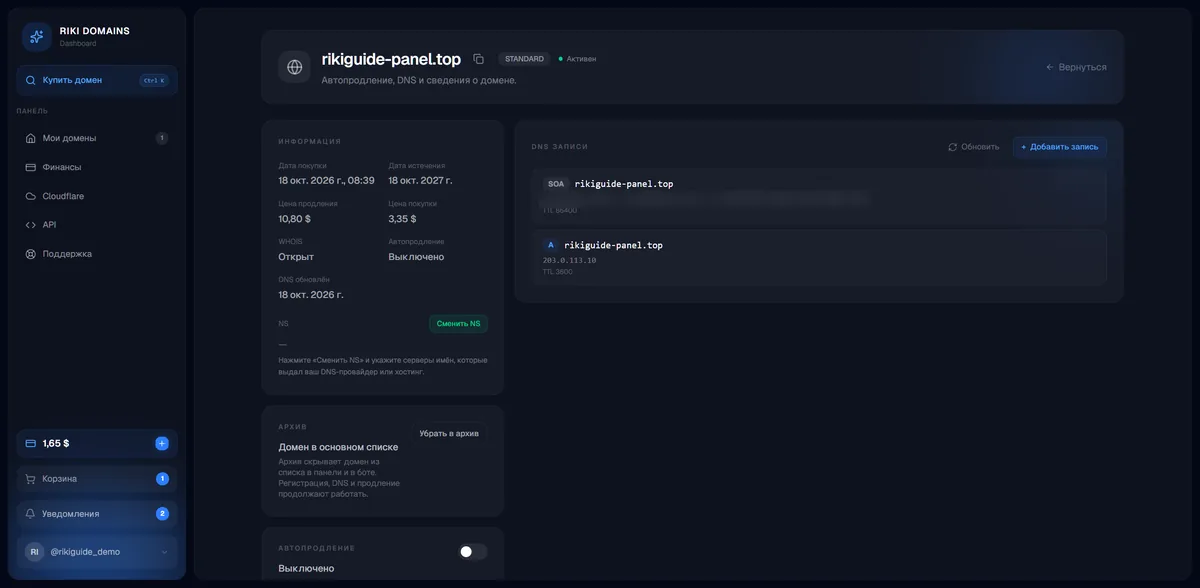
Clicking the domain opens its card. On the left is the Info block: purchase date, expiration date, renewal price, purchase price, WHOIS status, auto-renew, DNS update date and the nameservers with a Change NS button. Below are Archive (the domain can be hidden from the list in the panel and the bot while registration and DNS keep working) and the auto-renew switch with its cost. On the right is the DNS records block.
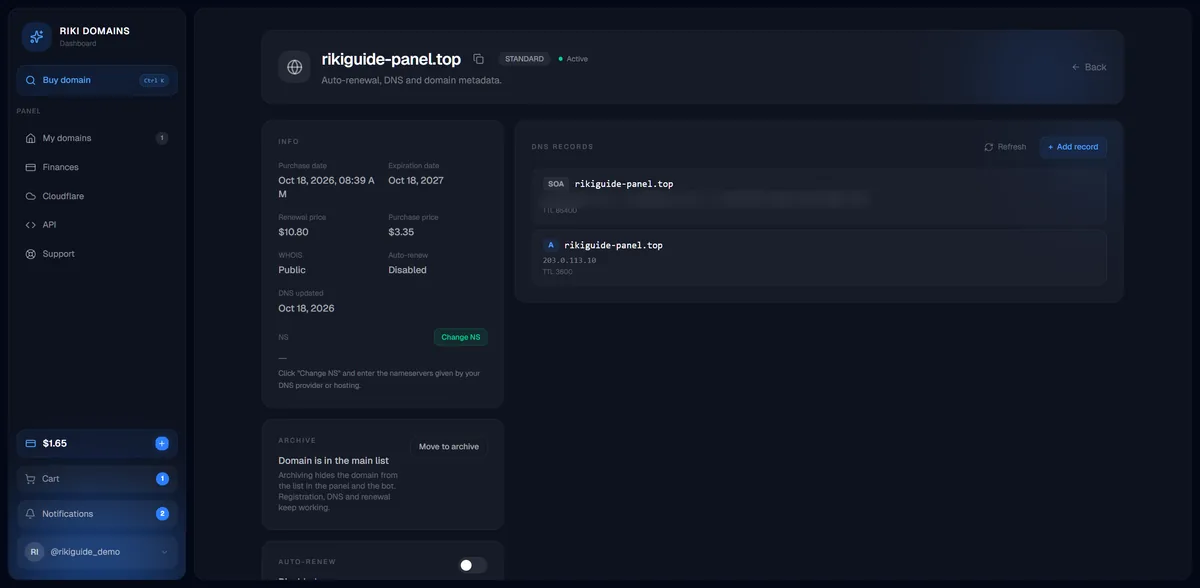
In the example the .top renewal price is $10.80 against a purchase price of $3.35: the first year in mass-market zones is sold at a registry discount, and the panel shows both figures at once.
Step 6. The first DNS record
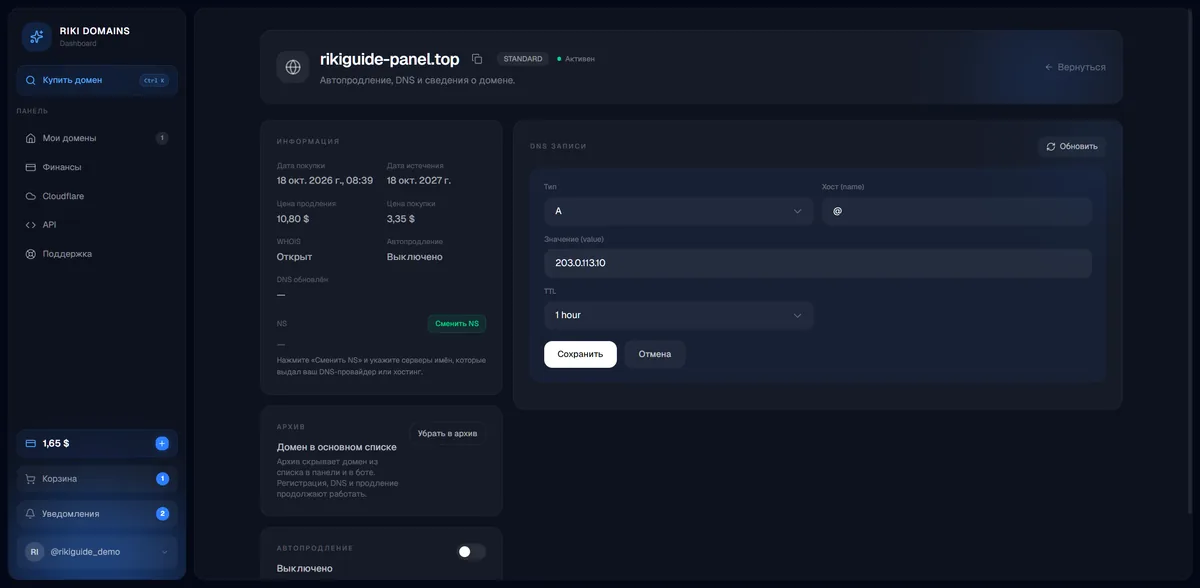
The Add record button opens a form: record type (A by default, the other types in the list), host (@ for the domain root or a subdomain name), value and TTL (1 hour by default). For a site on the server 203.0.113.10 that is type A, host @, value the address.
After Save the record appears in the list together with the zone's service SOA record. If the domain will run through Cloudflare or a host with its own nameservers, Change NS in the info block is used instead of records here, and with Cloudflare Provisioning enabled in the Cloudflare section new domains are connected there automatically.
What remains in Finances
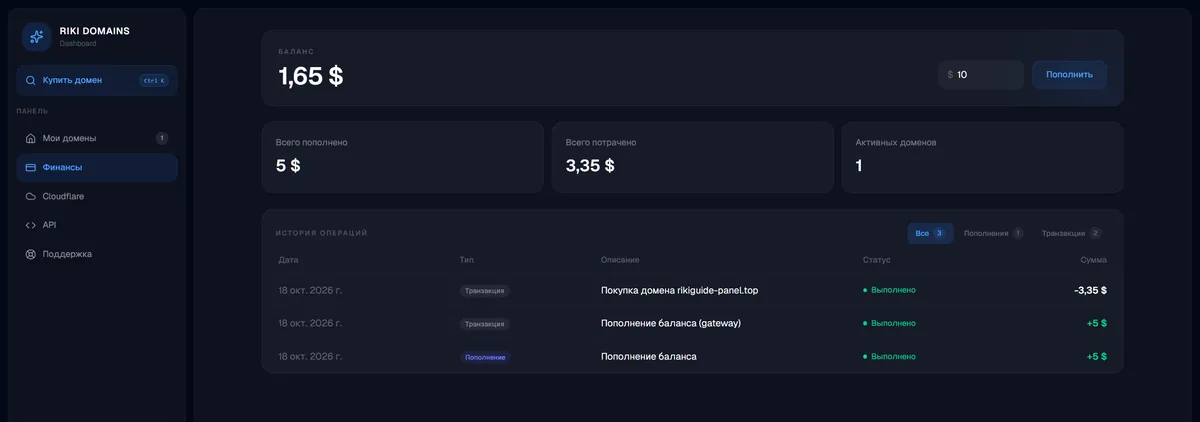
After the purchase the Finances section shows a balance of $1.65, the totals "deposited $5", "spent $3.35", "active domains 1" and three history lines: the deposit, the gateway transaction and the domain purchase.
Register a domain in 2 minutes
1,500+ zones, WHOIS privacy on request, crypto payment and DNS management — all inside the Telegram bot.
In short
- Finances → amount → Top up → payment on the payment page with any supported coin.
- Buy domain → category → keyword → Add.
- In the cart, WHOIS Privacy for $10 if needed → Pay → Confirm.
- 10–30 seconds and the domain is active; the card has DNS records, NS, auto-renew and archive.
If something goes wrong at any step, write to @riki_domains_support with the domain and a screenshot.
FAQ
How long does domain registration take in the panel?
After the purchase is confirmed the panel shows "Processing the order, usually 10–30 seconds". In our example a .top domain became active in about 20 seconds and appeared in the list with its expiry date and renewal price.
Can I buy a domain without Telegram?
Yes. Registration in the panel with a login and password, top-up and purchase all happen in the browser. The bot is not needed for this.
Where is WHOIS privacy enabled?
In the cart, with the "WHOIS Privacy for $10" switch next to the domain, before payment. Without it the domain card shows the WHOIS status as Public.
Why is renewal more expensive than the purchase?
In mass-market zones the first year is sold at a registry discount. In the example .top was bought for $3.35 and the renewal price in the domain card is $10.80. The renewal price is shown before purchase and in the card, no surprises.
Register a domain in 2 minutes
1,500+ zones, WHOIS privacy on request, crypto payment and DNS management — all inside the Telegram bot.