
How to Buy a Domain in the Riki Domains Bot: Step by Step
The full purchase path in @riki_domains_bot with screenshots: plan, keyword search, cart, USDT payment, activation and the first DNS records.
The Riki Domains bot replaces a registrar's control panel: it searches free names across 1,500+ zones, takes crypto payments, registers the domain and manages DNS. With that many buttons it is easy to get lost the first time. This guide walks the whole path from the first launch to the first DNS record. Every step was captured in the live bot on 17 October 2026; prices on the screenshots are valid for that date.
Step 1. Start, language and terms
Open @riki_domains_bot and tap "Start". The bot first asks for the interface language, Russian or English. You can switch later in the dashboard with the "Language" button.
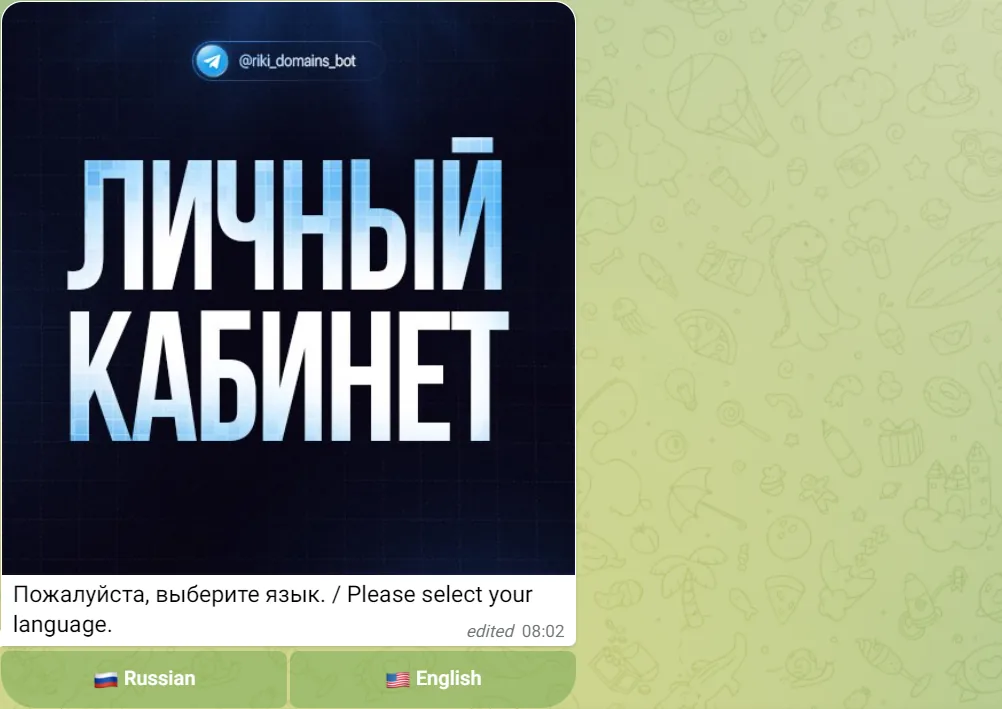
Next the bot asks you to accept the user agreement; the text opens from a link in the message. After "Accept" the main menu appears.
Step 2. The main menu
Six buttons. The first one is for buying; the rest come later.
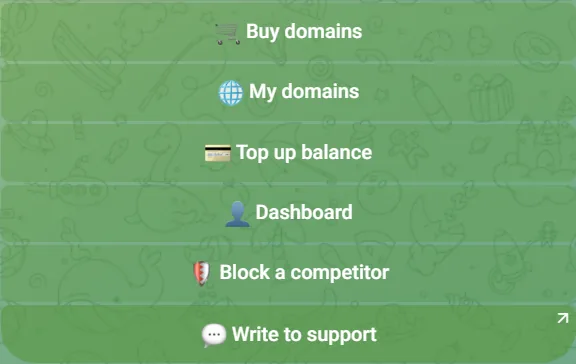
- Buy domains opens search and checkout.
- My domains lists your domains with DNS and renewal.
- Top up balance adds funds in advance so purchases go through in one tap.
- Dashboard holds language, promo codes, the referral program, Cloudflare and API.
- Block a competitor is a separate service that gets fraudulent sites suspended; it has nothing to do with buying a domain.
- Write to support opens a chat with a human.
A few secondary buttons are still labelled in Russian: «Назад» means Back and «Назад в меню» means Back to menu.
Step 3. Choose a plan
Tap "Buy domains". The bot offers three plans: Standard, Platinum and Titan. For a first purchase, tests and short projects Standard is enough: the price depends on the zone and starts at about $3. Platinum and Titan are for projects that need maximum stability, with fixed prices in verified zones. On those plans search works by keyword only: you cannot enter an exact address, the bot picks the zone from its verified list. In our test Platinum offered .org.uk for $40, .com.de for $30, .com.se for $45 and .ac for $70; Titan offered .com.co for $70, .co.com for $90, .at for $160 and .to for $200 for two years.

Step 4. Search for a name
The bot accepts two kinds of requests.
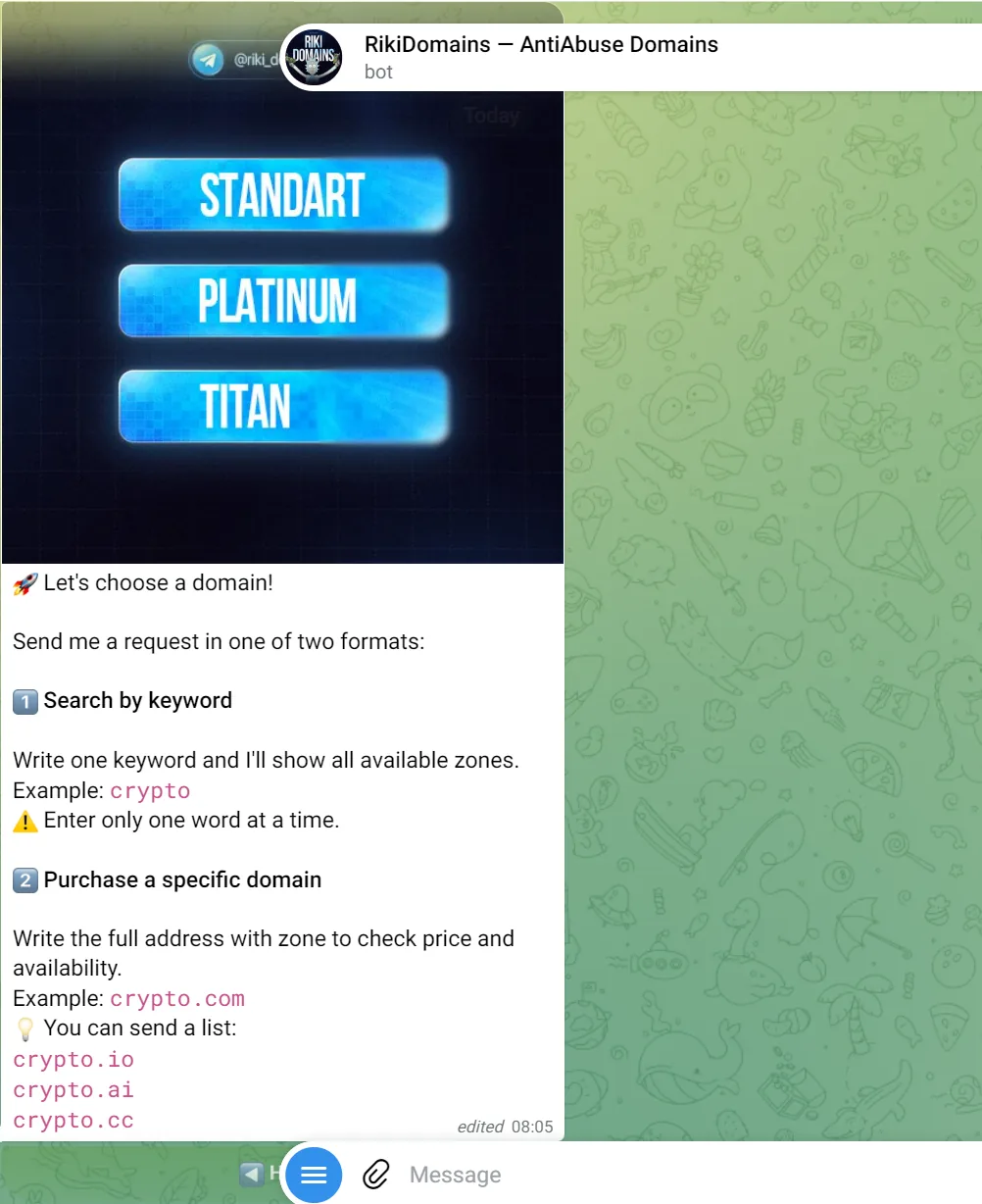
- A single keyword, for example
crypto. The bot checks it in every available zone and shows the free options with prices. Enter exactly one word at a time. - An exact address, for example
crypto.com, or a list of addresses one per line. The bot shows the price and availability for each.
A search takes from a few seconds to half a minute: the bot polls zones one by one and appends results to the same message. Wait until the "search in progress" line disappears.
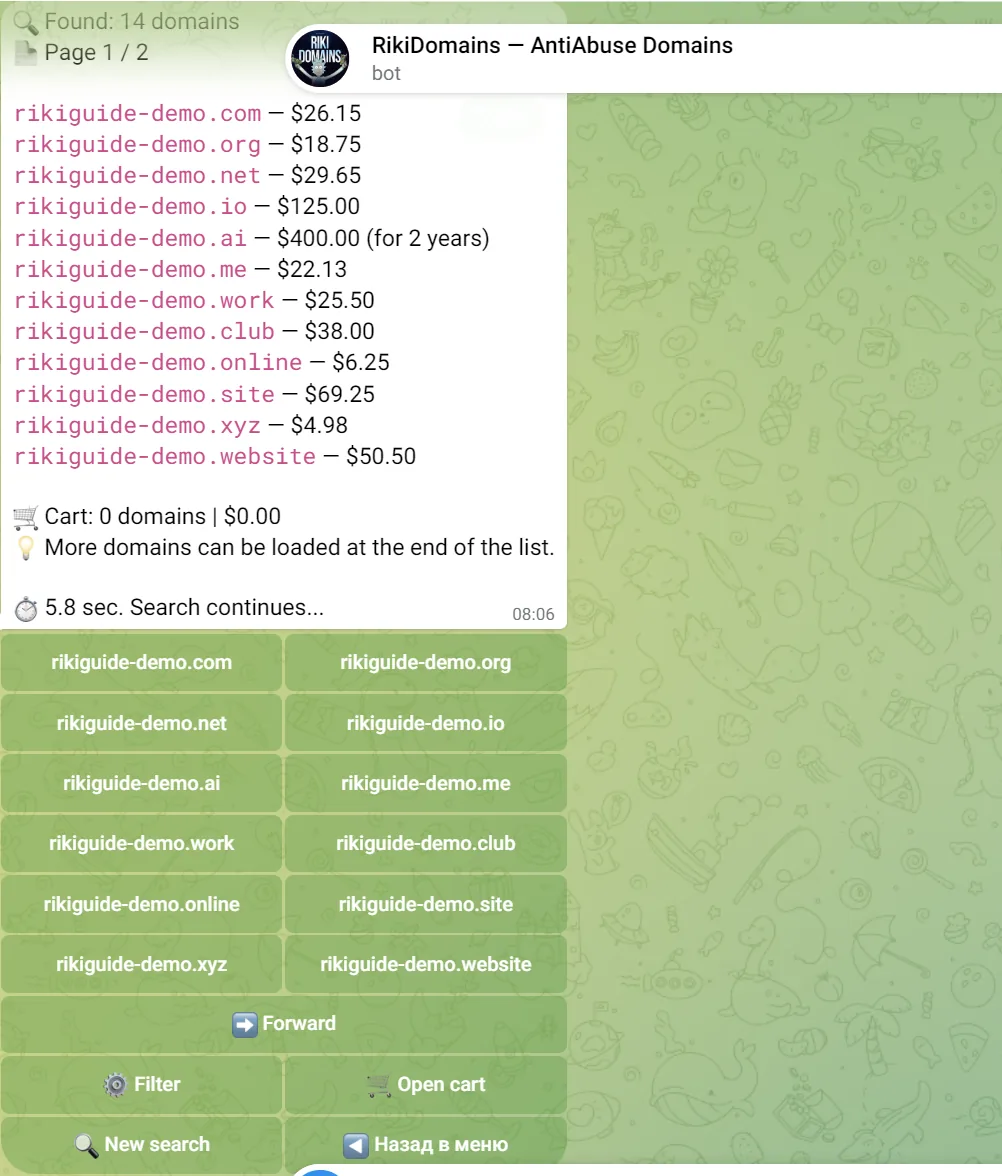
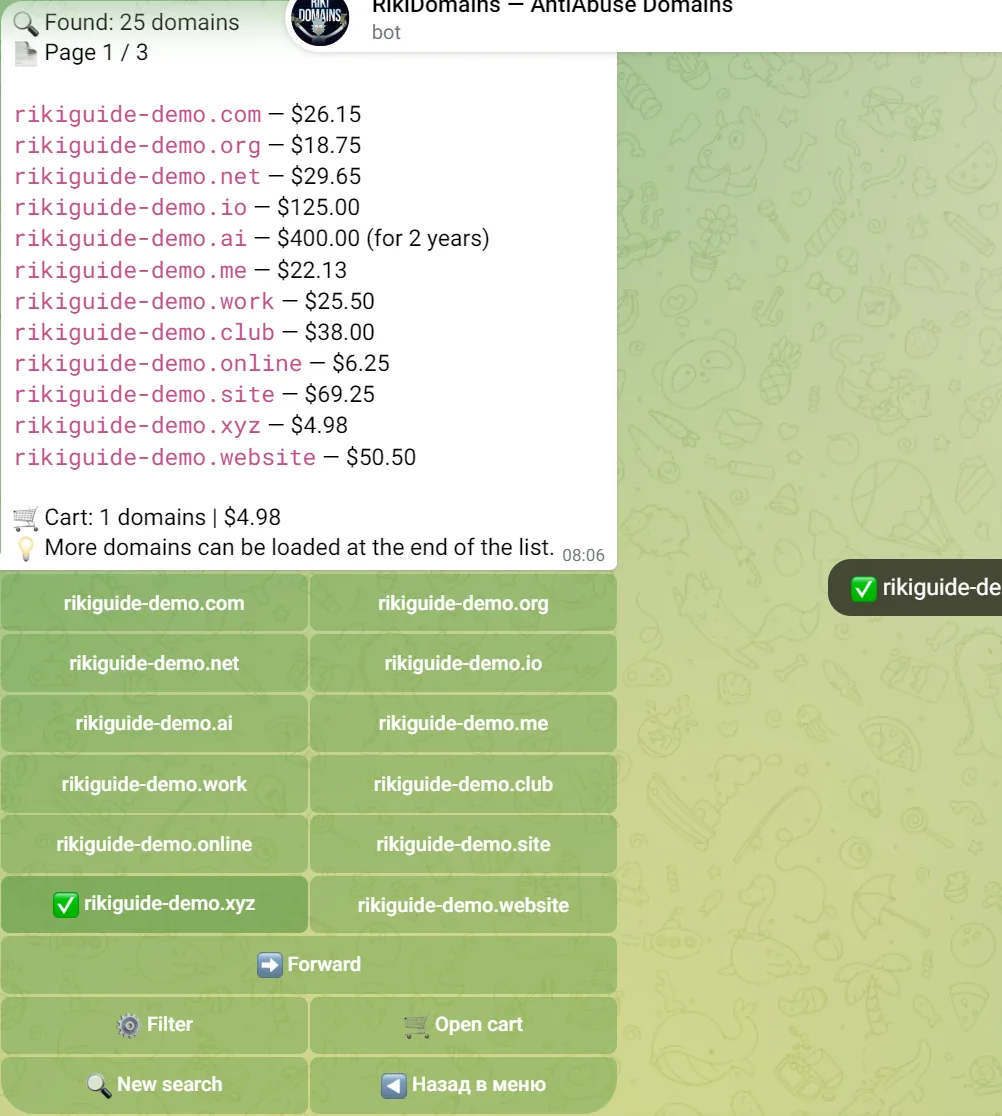
The screenshot shows how prices spread for one name: from $3.35 in .top and $4.98 in .xyz to $26.15 in .com and $125 in .io. The list is paginated: "Forward" shows the next zones, "Filter" narrows the choice, "New search" starts over.
Step 5. The cart
Tap a domain in the results to add it to the cart. The counter under the list shows the number of items and the total. You can collect domains from several searches.
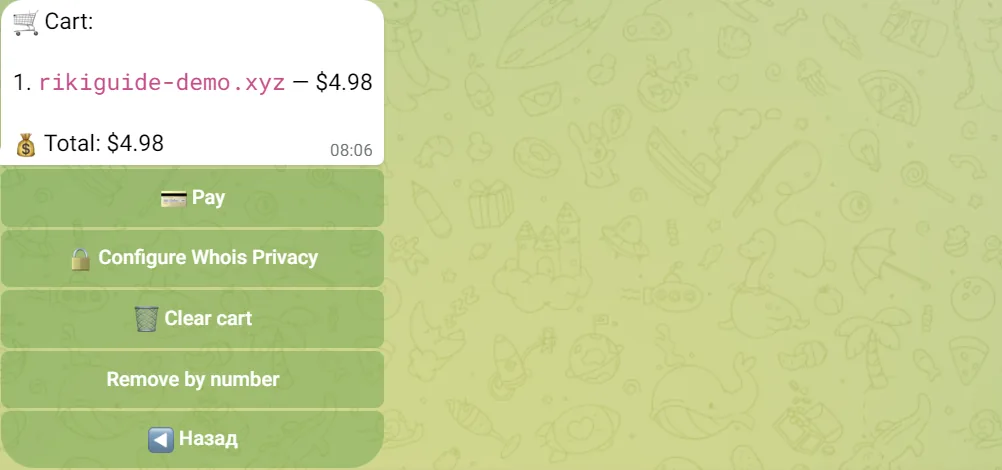
"Open cart" shows the list and the total. Here you can remove extra items or clear the cart. The "Whois Privacy" item hides the owner's data in public databases per domain. The option is paid, $10 per domain, and is chosen right here before payment. In the Platinum and Titan zones it is marked as unavailable because it is not needed: those domains are registered manually by the service's staff with Riki Domains' details in the registry record, so your data never goes there.
Step 6. Confirm and pay
Tap "Pay". The purchase is charged to your internal balance. If the balance is not enough, the bot tells you how much is missing and offers to top up exactly that amount.

After "Top up" the bot creates an invoice with a link to the payment page. Note the line in that message: after payment, the domains in the cart are registered automatically.
Register a domain in 2 minutes
1,500+ zones, WHOIS privacy on request, crypto payment and DNS management — all inside the Telegram bot.
Step 7. The payment page
The payment page opens in the browser. First the coin, then the details.
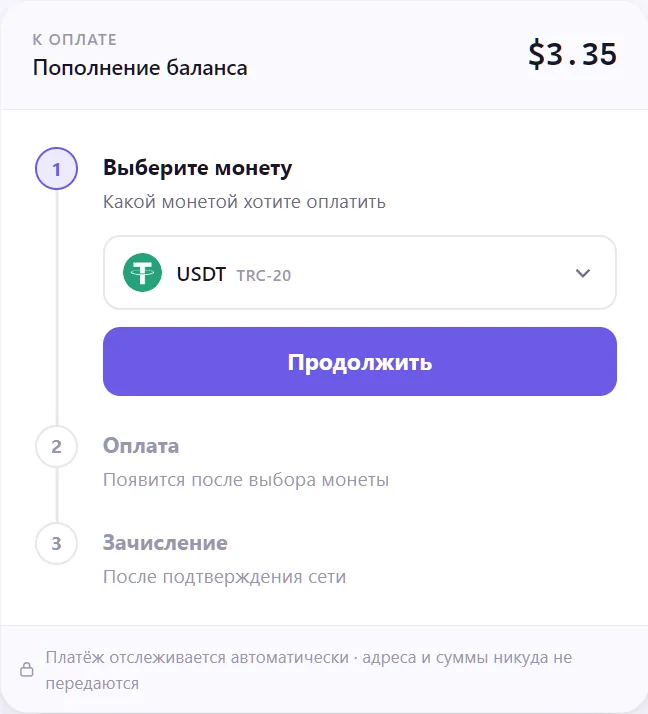
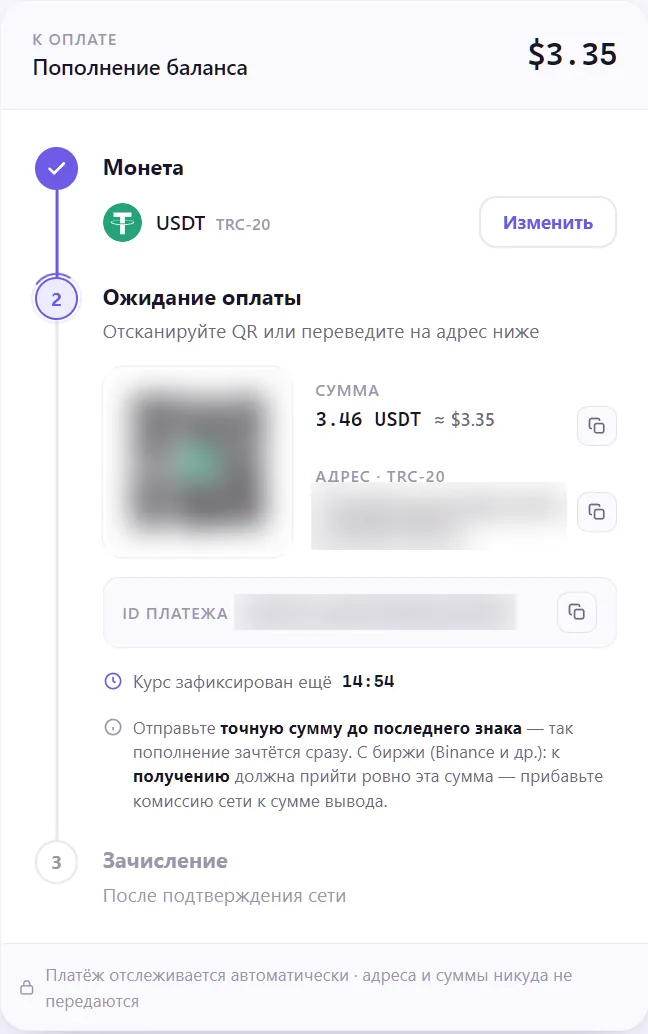
After "Continue" the page shows the amount in coins, the address, a QR code and the payment ID. The rate is locked for about 15 minutes and a timer is visible on the page.
Three rules that save time:
- Send the exact amount to the last digit, otherwise the payment is not matched automatically.
- When withdrawing from an exchange, add the network fee on top: the received amount must equal the one shown.
- Keep the payment ID: support finds the transfer by it if anything goes wrong.
Step 8. Credit and registration
Once the network confirms the transfer, the bot sends a credit message. In our test about twenty minutes passed between creating the invoice and the credit.
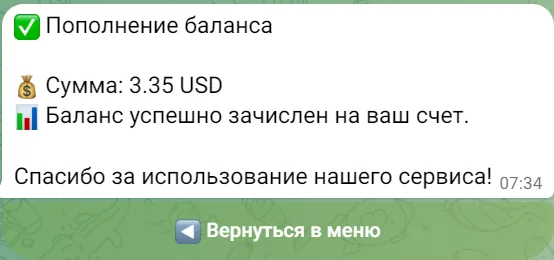
Then the bot registers the domains from the cart. If the cart turned out empty by then, for example because you went back to the menu, open "Buy domains", add the domain again and tap "Pay": the balance is already there and the purchase goes through immediately.
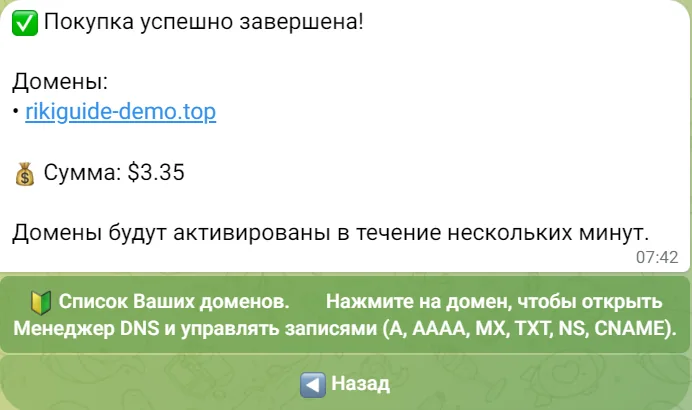
Step 9. The domain card and renewal
Purchased domains live in "My domains". Tap a name to open its card.
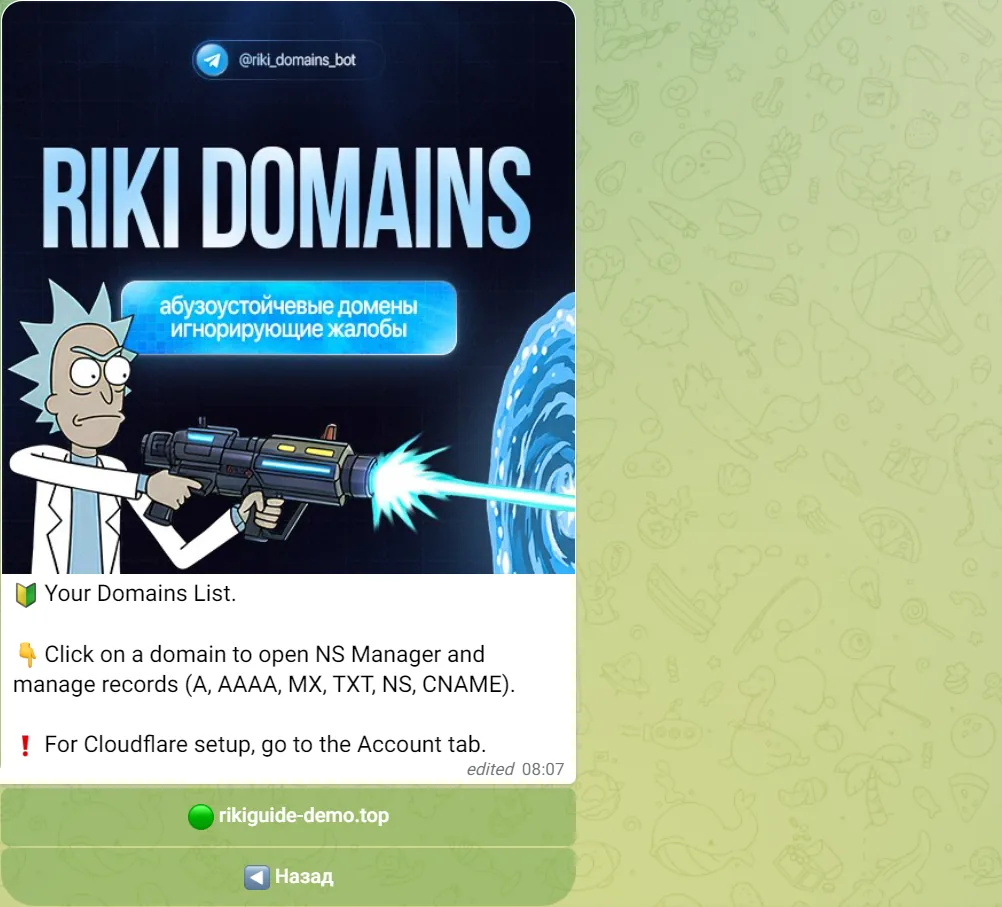
The card shows the purchase date, expiry date, renewal price and the auto-renewal state. Note that the renewal price differs from the purchase price: the .top from our test cost $3.35 to buy and $10.80 to renew. That is common for cheap zones and worth knowing in advance.
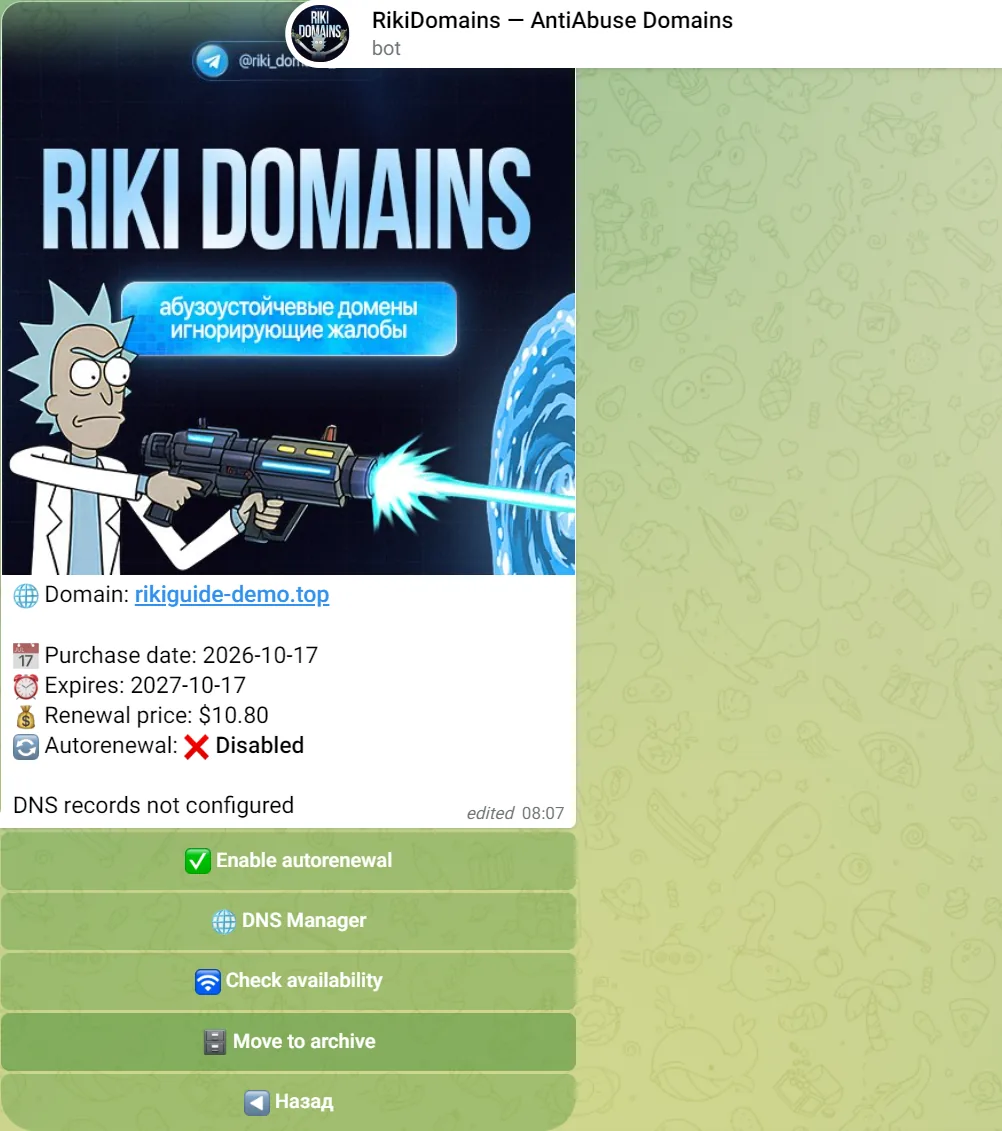
Enable auto-renewal if you need the domain long term and keep the renewal amount on the balance, so the domain never expires and drops to the market.
Step 10. The first DNS records
A domain needs DNS records to open. "DNS Manager" in the card lists the record types: A, CNAME, MX, TXT, AAAA and NS.
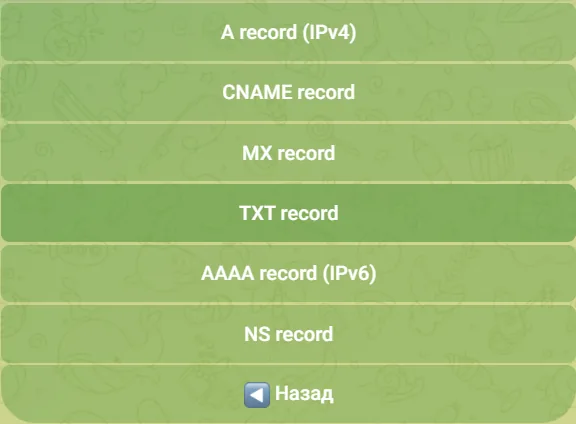
The input format is the same for all types: @value for the domain root and subdomain@value for a subdomain. For a site on a server with the address 203.0.113.10 that is @203.0.113.10 and www@203.0.113.10.
If the site will sit behind Cloudflare, it is easier to manage records there: the bot's dashboard has an integration that adds the domain to your Cloudflare account and switches the nameservers for you. That and the other functions are covered in How to use the Riki Domains bot.
Common mistakes
- Stopping at "Invoice created". The invoice registers nothing by itself; the transfer to the payment page details is what counts.
- Rounding the amount or paying the fee out of it. The payment is not matched automatically and you will need support with the payment ID.
- Not checking the cart. Before "Pay", make sure only the domains and zones you need are listed.
- Forgetting the renewal. Cheap zones renew for more than they cost; enable auto-renewal and keep a balance.
- Waiting for the site without DNS. A domain without records does not open; add an A record or connect Cloudflare.
FAQ
How long does a purchase take?
Two or three minutes to choose and check out, plus the network confirmation time. A balance top-up is credited automatically, usually within 10 to 20 minutes, and the domain is registered right after.
Can I buy several domains at once?
Yes. Send the bot a list of addresses, one per line, or add several domains from the search results to the cart. The total is paid with a single transfer.
What can I pay with?
The balance is topped up with cryptocurrency on the service's payment page: accepted are USDT (TRC-20 and BEP-20), USDC, BTC, ETH, TRX, BNB and POL; the guide shows USDT TRC-20. The amount in coins and the address appear after you pick the coin, and the rate is locked for about 15 minutes.
I sent the wrong amount. What now?
Write to support at @riki_domains_support with the payment ID shown on the payment page. To avoid this, send exactly the amount the page shows and add the network fee on top.
The domain is bought but the site does not open. Why?
A fresh domain has no DNS records. Open My domains, pick the domain, tap DNS Manager and add an A record with your server IP, or connect Cloudflare in the dashboard.
Register a domain in 2 minutes
1,500+ zones, WHOIS privacy on request, crypto payment and DNS management — all inside the Telegram bot.